Stop downloading files one by one. Build a small, dependable workflow that filters incoming email, saves the right attachments to Drive, and gives you a way to spot failures.
不用再逐封邮件手动下载文件。本文将搭建一套轻量、可维护的自动化流程:筛选邮件、把符合条件的附件保存到 Drive,并为失败情况留出检查机制。
Updated: October 26, 2026 · Estimated reading time: 9–12 minutes · Practical guide
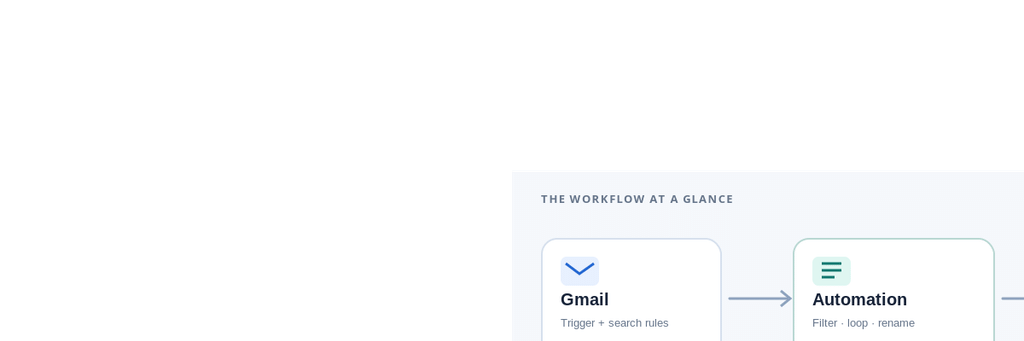
Original explanatory illustration; not a screenshot of a live connected account.
Quick recommendation
For most beginners, start with Zapier if you want the simplest setup. Choose Make if you need more control over attachment iteration, branching, and error handling. If you only need to find existing messages, Gmail search and filters help—but a Gmail filter alone does not move binary attachments into a Drive folder.
对大多数新手,追求快速搭建可以先看 Zapier;如果需要更灵活的附件循环、分支和错误处理,Make 通常更适合。Gmail 搜索和过滤器能帮助筛选邮件,但单靠 Gmail 过滤器并不能把附件文件本身自动保存到 Drive 文件夹。In this guide / 本文目录
- What you need / 准备工作
- Build the workflow / 搭建自动化
- Test plan and comparison / 测试方案与对比
- Reliability, duplicates, and privacy / 稳定性、重复文件与隐私
- FAQ / 常见问题
1. What You Need Before Starting
You need a Gmail account, a Google Drive folder dedicated to incoming attachments, and an automation account on Zapier or Make. Create a folder such as Email Attachments/Invoices or Email Attachments/Reports before connecting the workflow.
开始前需要一个 Gmail 账号、一个专门存放邮件附件的 Google Drive 文件夹,以及 Zapier 或 Make 账号。建议先建立 Email Attachments/Invoices(发票)或 Email Attachments/Reports(报告)等文件夹,再配置自动化。
Use a test mailbox or a non-sensitive folder for the first run. Automation platforms will ask you to authorize access to your email and Drive; review the requested permissions and connect only the account you intend to automate.
首次运行建议使用测试邮箱或不含敏感资料的文件夹。自动化平台会要求授权邮件和 Drive 访问权限,请先检查授权范围,只连接确实需要自动化的账号。
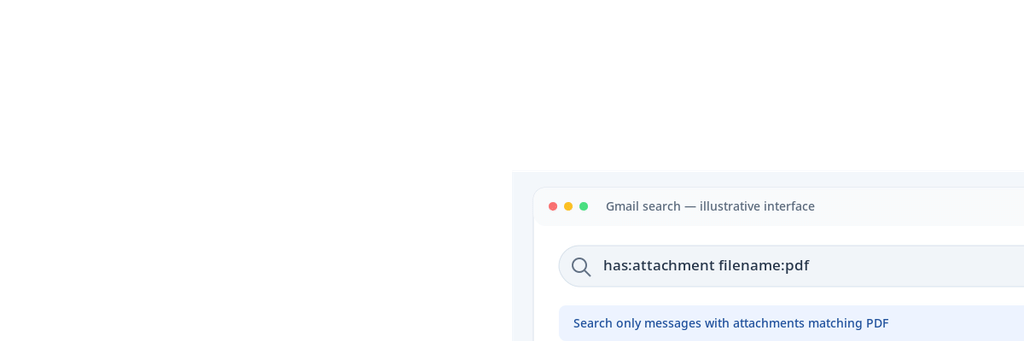
has:attachment and filename:pdf.界面示意图。Gmail 支持 has:attachment、filename:pdf 等搜索运算符。Useful Gmail search queries
| Goal / 目标 | Query / 搜索语句 |
|---|---|
| Any attachment 任意附件 | has:attachment |
| PDF attachments PDF 附件 | has:attachment filename:pdf |
| Attachments from a sender 指定发件人附件 | from:reports@example.com has:attachment |
| Invoice emails with attachments 包含附件的发票邮件 | subject:invoice has:attachment |
These queries are useful for defining and debugging your selection rules. They do not themselves create an attachment-to-Drive automation; that requires an automation step or a script with the appropriate permissions.
这些搜索语句适合定义和排查筛选规则,但它们本身不会建立“附件自动保存到 Drive”的流程;你仍需要自动化平台中的相应动作,或具备适当权限的脚本。
2. Build the No-Code Workflow
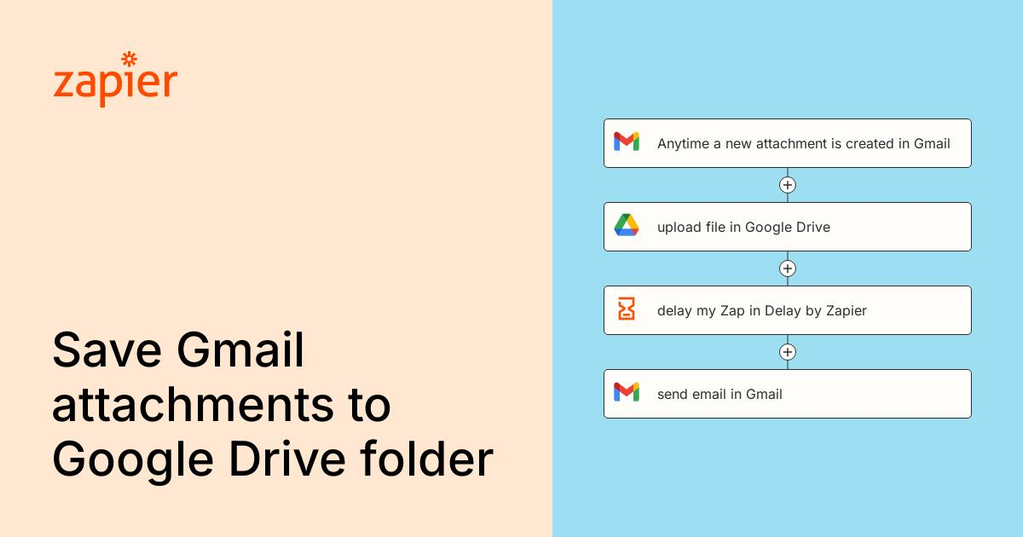
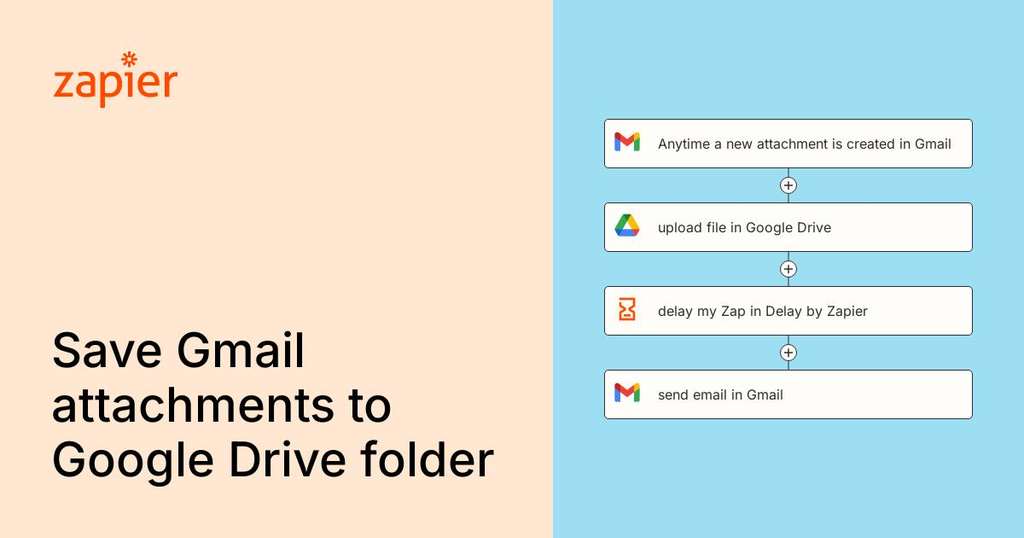
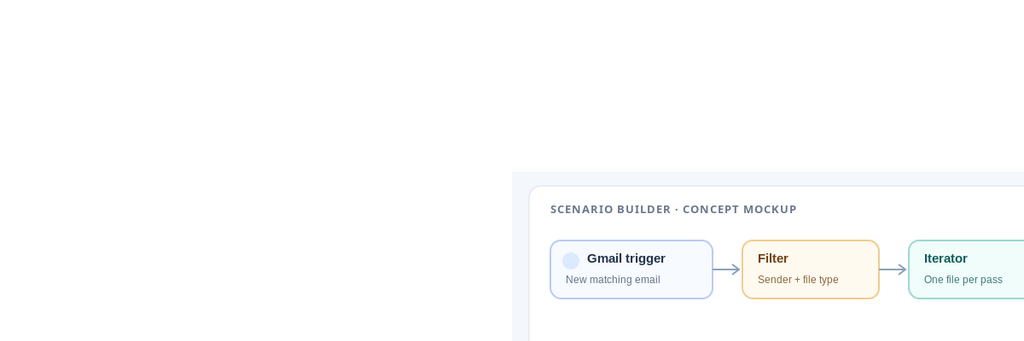
The basic pattern is: trigger on a new matching email, retrieve its attachments, iterate over each attachment if necessary, upload each file to the target Drive folder, and record the outcome. Exact labels vary by platform and plan, so treat the steps below as the workflow logic rather than a promise that every account shows identical menu names.
基本逻辑是:触发一封符合条件的新邮件,获取附件,必要时逐个遍历附件,将文件上传到目标 Drive 文件夹,并记录处理结果。不同平台和套餐的菜单名称可能不同,下面描述的是流程逻辑,不代表每个账号的界面完全一致。
1
Choose a trigger / 选择触发器
In Zapier, choose a Gmail trigger such as a new email with an attachment, if available for your connection. In Make, start with a Gmail watch/search module that can identify new messages. Limit the trigger to a specific label, sender, or subject pattern where possible.
在 Zapier 中,可选择当前连接支持的“收到带附件的新邮件”类 Gmail 触发器;在 Make 中,可从 Gmail 监视或搜索模块开始。条件允许时,尽量限制到特定标签、发件人或主题格式。
2
Filter before uploading / 上传前先过滤
Allow only the senders, subjects, and file types you expect. For example, a supplier invoice workflow might accept messages from a known billing address and allow only PDF files. Do not rely on file extensions alone for security; extensions are a routing convenience, not proof that a file is safe.
只允许预期的发件人、主题和文件类型。例如,供应商发票流程可以只接受已知账单邮箱,并只保存 PDF。不要仅凭扩展名判断文件安全;扩展名只是路由条件,不是安全证明。
3
Handle each attachment / 逐个处理附件
Some triggers return one attachment; others return a list or an array. If the email contains multiple files, use the platform’s loop/iterator feature or map each attachment item into the Drive upload action. Confirm that the upload action receives the actual file data or a supported file object—not merely the attachment’s filename or a temporary URL.
有些触发器只返回一个附件,有些返回列表或数组。如果一封邮件有多个文件,就使用平台的循环/迭代器,或把每个附件映射到 Drive 上传动作。务必确认上传动作接收的是实际文件数据或受支持的文件对象,而不是只有文件名或临时链接。
4
Set the destination and naming rule / 设置保存位置与命名规则
Choose the destination folder explicitly. A useful naming pattern is YYYY-MM-DD_sender_original-filename, for example 2026-10-26_acme_invoice-1042.pdf. Add a date or sender prefix to reduce collisions, but preserve the original filename somewhere in the record.
明确指定目标文件夹。一个实用的命名规则是 YYYY-MM-DD_sender_original-filename,例如 2026-10-26_acme_invoice-1042.pdf。加入日期或发件人前缀可以减少重名冲突,同时应在记录中保留原始文件名。
5
Add a success or failure log / 添加成功与失败日志
If your platform supports it, write the message ID, sender, original filename, Drive destination, timestamp, and final status to a Google Sheet or send a notification when a run fails. A log is especially useful when a workflow silently skips an attachment or a connection expires.
如果平台支持,可以把邮件 ID、发件人、原始文件名、Drive 目标位置、时间戳和最终状态写入 Google Sheets,或在运行失败时发送通知。当流程跳过附件或连接授权过期时,日志尤其有用。
Suggested folder structure / 推荐文件夹结构
My Drive/
└── Email Attachments/
    ├── Invoices/
    ├── Reports/
    ├── Contracts/
    └── Needs Review/
将不同类型的文件分开保存,能降低后续检索成本。对于不确定格式、超出大小限制或无法正常读取的附件,可以先放入 “Needs Review” 文件夹,而不是直接丢弃。
3. A Practical Test Plan and Tool Comparison
A useful automation test should verify more than whether one file appears in Drive. The important questions are whether the workflow selects the right email, saves every eligible attachment, ignores excluded files, handles duplicate names, and exposes errors.
有价值的自动化测试不能只看 Drive 里有没有出现一个文件。更重要的是:流程是否选对邮件、是否保存全部合格附件、是否忽略不符合条件的文件、是否处理重名,以及是否能发现错误。
Testing transparency / 测试透明度
The matrix below is a reproducible acceptance-test plan, not a claim that live Gmail, Zapier, Make, or Drive accounts were connected in this session. Use it to run the same cases in your own test account and replace the “Expected” column with observed results.
下方矩阵是可复现的验收测试方案,并不表示本次已连接真实 Gmail、Zapier、Make 或 Drive 账号完成实测。请在自己的测试账号中运行相同用例,再将“预期结果”替换为实际观察结果。
| Test case / 测试用例 | Input / 输入 | Expected result / 预期结果 | Observed / 实测 |
|---|---|---|---|
| 1. Single valid file 单个合规附件 | Known sender + PDF | One PDF saved to target folder | Not tested in a live account |
| 2. Multiple files 多个附件 | PDF + DOCX in one email | Both files saved once | Not tested in a live account |
| 3. Excluded sender 排除发件人 | Unknown sender + PDF | No upload | Not tested in a live account |
| 4. Unsupported type 不支持的类型 | Allowed sender + ZIP | Skipped or routed for review | Not tested in a live account |
| 5. Duplicate filename 重复文件名 | Two emails with report.pdf | No silent overwrite; collision rule applied | Not tested in a live account |
| 6. Expired connection 连接授权过期 | Revoke test connection | Run fails visibly and can be retried | Not tested in a live account |
How to run a fair test / 如何进行公平测试
- Create a dedicated test folder in Drive and send six test emails using non-sensitive sample files.在 Drive 中创建专用测试文件夹,并用不含敏感信息的样例文件发送六封测试邮件。
- Record the message ID, expected attachment count, expected file types, and whether the message should be excluded.记录邮件 ID、预期附件数量、文件类型,以及该邮件是否应该被排除。
- Run the same cases in each platform. Keep the trigger rules, file types, folder destination, and test messages identical.在不同平台中运行相同用例,保持触发规则、文件类型、目标文件夹和测试邮件一致。
- Count correct uploads, missed files, unwanted uploads, duplicates, and visible failures. Do not compare speed based on a single run.统计正确上传数、漏存文件、误上传文件、重复文件和可见错误。不要根据单次运行就判断速度优劣。
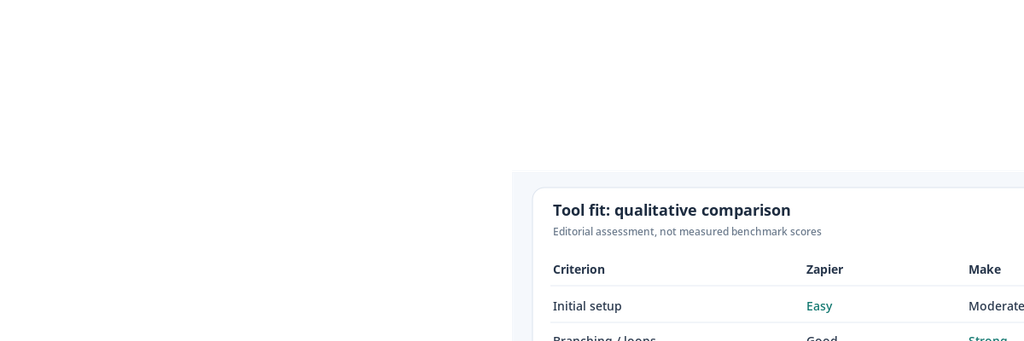
| Tool / 工具 | Strength / 优势 | Trade-off / 取舍 | Best for / 适合谁 |
|---|---|---|---|
| Zapier | Fast to understand; approachable step-by-step builder. 流程直观,上手较快。 | Task limits and trigger/action details vary by plan. 任务额度及触发器/动作能力因套餐而异。 | One simple mailbox-to-folder workflow. 单邮箱、单文件夹的简单流程。 |
| Make | Visual branching, iterators, and more explicit data mapping. 分支、迭代器和数据映射更灵活。 | More concepts to learn and debug. 学习与排错成本更高。 | Multiple attachment types, rules, and exception paths. 多附件、多规则及异常分流。 |
| Gmail filters | Native email sorting and labeling; no third-party automation needed for triage. 原生邮件分类和标签,不需要第三方自动化。 | Filtering alone does not upload attachments to Drive. 单靠过滤器不能把附件上传到 Drive。 | Pre-filtering mail or organizing a manual workflow. 预筛选邮件或整理手动流程。 |
Metrics worth calculating / 值得计算的指标
For a small test set, calculate attachment capture rate as eligible files saved ÷ eligible files sent × 100%. Also calculate the false-upload rate as ineligible files saved ÷ all files saved × 100%. These are your own observed metrics; do not substitute vendor marketing claims.
对于小规模测试,可以用 已保存的合格文件 ÷ 发送的合格文件 × 100% 计算附件捕获率;用 误保存的不合格文件 ÷ 所有已保存文件 × 100% 计算误上传率。这些指标应来自你自己的实测,而不是厂商宣传数据。
4. Reliability: Duplicates, Failures, and Privacy
Prevent duplicate uploads / 防止重复上传
A workflow may process the same message again after a retry, replay, or configuration change. A date-prefixed filename helps with name collisions but does not guarantee idempotency. For stronger protection, store a unique key such as the email message ID plus attachment filename in a log, check whether that key has already succeeded, and only then upload.
重试、重新播放任务或修改配置后,流程可能再次处理同一封邮件。文件名前加日期有助于减少重名,但不能保证幂等性。更稳妥的做法是把邮件 ID 与附件文件名组成唯一键写入日志,先检查是否成功处理过,再决定是否上传。
Plan for errors / 为错误处理留出路径
Common failure points include expired OAuth connections, changed folder permissions, attachment objects that contain metadata but not file content, files that exceed a platform’s limits, and temporary service errors. Configure a retry where appropriate, notify an owner after repeated failures, and keep failed items discoverable rather than silently dropping them.
常见故障包括 OAuth 授权过期、文件夹权限变化、附件对象只有元数据而没有文件内容、文件超出平台限制,以及服务临时错误。适当配置重试,在多次失败后通知负责人,并让失败项目可追踪,避免静默丢失。
Protect sensitive files / 保护敏感文件
Email attachments can contain personal information, invoices, contracts, or confidential business data. Use the minimum permissions required, avoid public sharing links, choose a destination with appropriate access controls, and confirm your organization’s data-handling policy before routing sensitive mail through a third-party automation service.
邮件附件可能包含个人信息、发票、合同或商业机密。请遵循最小权限原则,避免创建公开分享链接,选择访问权限合适的目标文件夹,并在通过第三方自动化服务处理敏感邮件前确认组织的数据处理政策。
Should you use Apps Script instead? / 是否应该改用 Apps Script?
Google Apps Script can be a useful alternative when you want more control and are comfortable maintaining code, quotas, and authorization. However, it is not no-code, and it still needs careful handling of triggers, attachment blobs, duplicate detection, and error logging. For a beginner who wants a visual workflow, start with a no-code tool first.
如果你需要更高控制力,并愿意维护代码、配额和授权,Google Apps Script 也是一种选择。但它并非无代码方案,同样需要妥善处理触发器、附件二进制数据、重复检测和错误日志。对于希望使用可视化流程的新手,建议先从无代码工具开始。
5. Frequently Asked Questions
Can Gmail automatically save every attachment to Drive without Zapier or Make?
Gmail filters can label, archive, or route matching email, and Gmail search can find messages with attachments. Those features alone do not provide a general rule to copy every attachment into a chosen Drive folder. You need an automation connector, a script, or a purpose-built integration.
Gmail 过滤器可以给邮件加标签、归档或分类,搜索也能找到带附件的邮件。但这些功能本身并不提供“将所有附件复制到指定 Drive 文件夹”的通用规则。你需要自动化连接器、脚本或专门的集成工具。
Can I save only PDF files?
Yes, if your chosen trigger or filter can inspect attachment filenames or MIME types. Test files with uppercase extensions, multiple attachments, and misleading filenames. For security-sensitive workflows, do not treat a “.pdf” suffix as a safety check.
可以,前提是所选触发器或过滤步骤能够检查附件文件名或 MIME 类型。请测试大写扩展名、多附件以及容易误导的文件名。对于安全敏感的流程,不要把“.pdf”后缀当作安全检查。
What happens if two attachments have the same filename?
The result depends on the upload action and Drive behavior. Google Drive may treat same-name uploads as separate files or offer revision-related behavior depending on the method and context. Use a deterministic naming scheme and test collisions before enabling the workflow for important documents.
结果取决于上传动作和 Drive 的具体行为。根据上传方式和场景,同名文件可能作为独立文件保存,也可能涉及版本处理。正式处理重要文档前,应使用确定性的命名规则并专门测试重名情况。
Is this automation free?
It may be possible to prototype within free tiers, but limits can apply to tasks, operations, polling frequency, file size, or connected-app features. Check the current plan pages before relying on a workflow for business-critical files. Google Drive storage is also subject to account storage limits.
免费套餐可能足以搭建原型,但任务数、操作数、轮询频率、文件大小或应用连接功能都可能受到限制。若流程用于重要业务文件,请先核实当前套餐规则。Google Drive 本身也受账号存储空间限制。
Conclusion: Automate the Boring Part, Keep the Audit Trail
The best email attachment automation is not simply the one that uploads a file—it is the one that saves the right file, to the right folder, with a traceable result when something goes wrong. Start with a narrow sender rule and a dedicated Drive folder, test edge cases, and expand only after the acceptance tests pass.
好的邮件附件自动化不只是“能上传文件”,而是能把正确的文件保存到正确的文件夹,并在出错时留下可追踪记录。建议先从严格的发件人规则和专用 Drive 文件夹开始,覆盖边界情况,验收通过后再扩大使用范围。
Recommended next step / 建议下一步
Build a small test scenario with one sender, one allowed file type, and one Drive folder. Verify single-file, multi-file, duplicate-name, and failure cases before connecting your main inbox.
先用一个发件人、一种允许的文件类型和一个 Drive 文件夹搭建测试流程。在连接主邮箱之前,先验证单附件、多附件、重名和失败场景。
References and Further Reading
- Google Gmail Help: Refine searches with operators — search operators such as
has:attachmentandfilename:. - Google Drive Help: Upload files and folders — upload behavior and storage basics.
- Zapier Help: Get started with Gmail — connecting Gmail and available trigger patterns.
Editorial note: Interface illustrations in this article are original explanatory mockups. The comparison is qualitative; no live service benchmark or account-specific result is claimed. Re-check platform features, permissions, quotas, and pricing before implementation.
编辑说明:本文界面图片为原创说明性示意图。工具对比属于定性分析,不声称进行了实时服务基准测试或账号级实测。实施前请重新核实平台功能、权限、额度和价格。